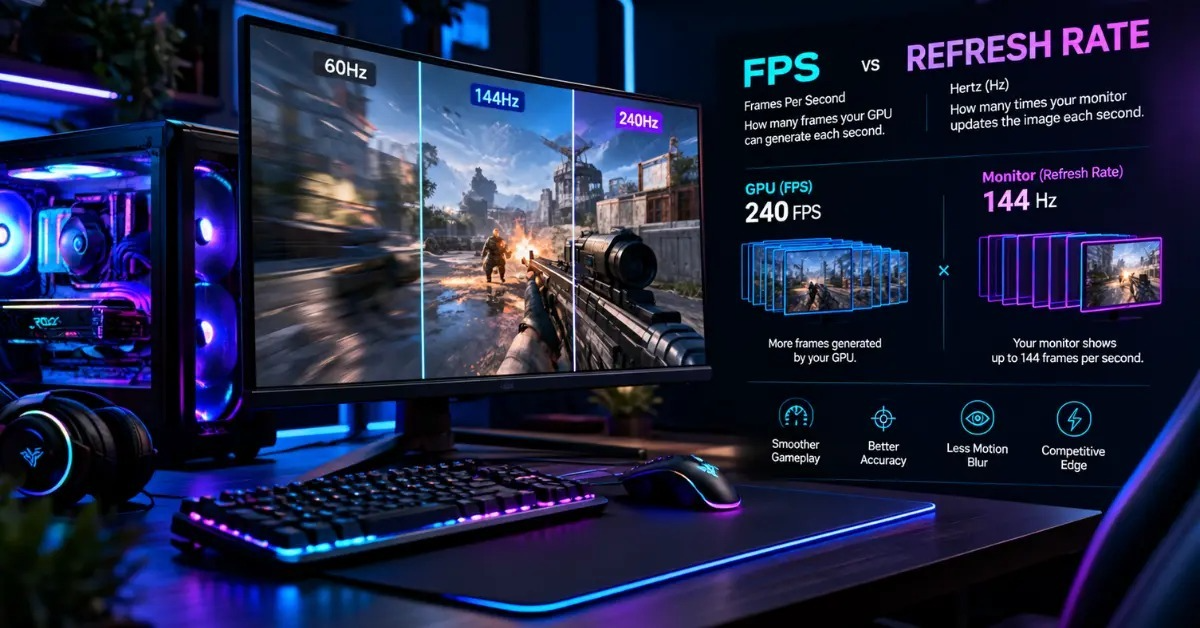
FPS and Hz are two of the most common numbers in PC gaming, and they are often mixed up. They are not the same thing. FPS is how many frames your graphics card creates each second. Hz is how many times your monitor refreshes the picture each second. This guide explains the 7 key differences, how to check both numbers on your PC, and how to match them for a smooth setup.
Quick Summary: FPS vs Hz
FPS (frames per second): the number of frames your GPU renders each second.
Hz (hertz): the number of times your monitor refreshes the screen each second.
Simple rule: FPS is how many frames are made. Hz is how many times the screen can update.
What Is FPS?
A game is a series of still images shown one after another. Each image is called a frame. Your graphics card (GPU) draws each frame, and FPS counts how many it finishes in one second. At 30 FPS the GPU draws 30 frames every second. At 144 FPS it draws 144.
More FPS usually makes motion look smoother and controls feel quicker. FPS does not change how good the graphics look. Image quality comes from settings such as textures, lighting, and resolution.
FPS is not fixed. It changes with your GPU and CPU, the game, the resolution, and the graphics settings. To estimate what your own hardware can reach, use our free FPS Calculator.
What Is Hz?
Hz is the unit for a monitor's refresh rate. A 60 Hz monitor refreshes 60 times per second. A 144 Hz monitor refreshes 144 times per second. Some gaming monitors go to 240 Hz, 360 Hz, or higher.
The refresh rate is a hardware limit. A 60 Hz monitor can show at most 60 new images per second, even if your GPU makes 200 frames per second. The extra frames are never fully displayed.
The 7 Key Differences
1. What they measure
FPS measures how many frames your GPU produces each second. Hz measures how many times your monitor refreshes each second.
2. Which hardware controls them
FPS depends mainly on your GPU, with help from your CPU. Hz is set by your monitor. A faster GPU raises FPS, but it cannot raise Hz.
3. Fixed or variable
FPS changes all the time. It drops in busy scenes and rises in simple ones. Hz stays at the value you set in your display settings, unless your monitor uses variable refresh rate.
4. How you improve each
To raise FPS, lower graphics settings, lower the resolution, close background apps, or upgrade your hardware. To raise Hz, you need a monitor with a higher refresh rate, and you must set it in your display settings.
5. What a mismatch causes
When the two numbers do not line up, you can see screen tearing or uneven motion (stutter). The next section explains both.
6. What each one limits
FPS limits how many new frames exist. Hz limits how many of those frames your screen can show. You only see the lower of the two in practice. A 60 Hz monitor with a GPU making 200 FPS shows about 60 updates per second. A 240 Hz monitor with a GPU making 60 FPS still shows only 60 new frames per second.
7. Where you check them
You check FPS with an in-game or overlay counter. You check Hz in your operating system's display settings. Both are covered below.
FPS vs Hz: Side-by-Side Table
| Feature | FPS (Frame Rate) | Hz (Refresh Rate) |
|---|---|---|
| What it measures | Frames your GPU makes per second | Screen refreshes per second |
| Controlled by | GPU and CPU | Monitor |
| Fixed or variable | Changes with the game and scene | Set by the monitor and your settings |
| How to raise it | Lower settings or upgrade hardware | Use a higher-refresh monitor |
| Where to check | In-game or overlay counter | Display settings |
| Problem when too low | Choppy, laggy gameplay | Fewer screen updates and older images on screen |
How FPS and Hz Work Together
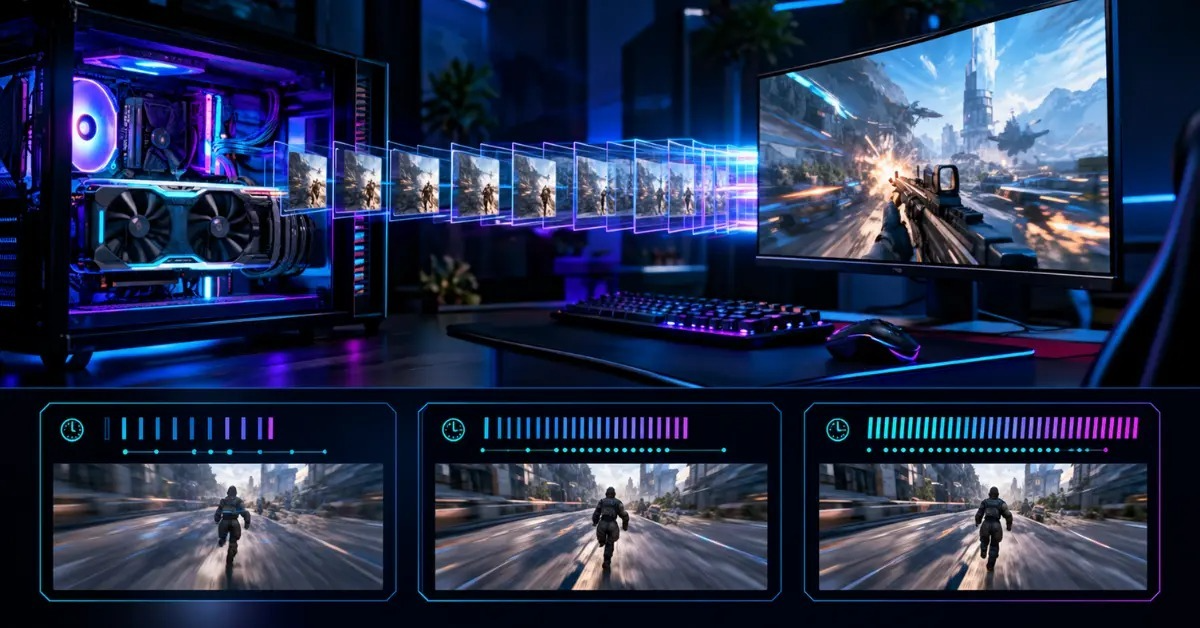
Think of the GPU as a machine that prints pictures and the monitor as a window that updates on a fixed schedule.
Every refresh, the monitor shows the newest picture that is ready. If the GPU makes more pictures than the monitor can show, some are skipped. If the GPU makes fewer, the same picture is shown more than once.
Higher refresh rates also mean each refresh arrives sooner. This table shows how long one refresh takes at common refresh rates. The values are simple math: 1000 divided by Hz.
| Refresh Rate | Time Between Refreshes |
|---|---|
| 60 Hz | 16.7 ms |
| 120 Hz | 8.3 ms |
| 144 Hz | 6.9 ms |
| 165 Hz | 6.1 ms |
| 240 Hz | 4.2 ms |
| 360 Hz | 2.8 ms |
The same math works for frames. At 60 FPS each frame takes 16.7 ms to make, and at 144 FPS each frame takes 6.9 ms. Shorter times mean newer information on screen, which is why competitive players like high refresh rates.
Screen Tearing, Stutter, and VSync
Screen tearing happens when the monitor shows parts of two different frames at once. You see a horizontal split line in fast movement. It can happen whenever FPS and Hz are not in sync, and it is easiest to notice when FPS is higher than Hz.
Stutter is uneven motion. It can happen when the GPU cannot deliver a new frame for every refresh, so some frames stay on screen longer than others.
VSync makes the GPU wait for the monitor's refresh, which stops tearing. The downside is that it can add input lag, and it can make frame rate drop sharply when the GPU cannot keep up.
G-Sync and FreeSync
G-Sync (from NVIDIA) and FreeSync (from AMD) are variable refresh rate (VRR) technologies. Instead of a fixed schedule, the monitor changes its refresh rate to follow the GPU's FPS, within the range the monitor supports. This removes most tearing and stutter without the delay of classic VSync.
Names differ by tier, such as G-Sync Compatible and FreeSync Premium. Many FreeSync monitors also work with NVIDIA graphics cards as G-Sync Compatible, but support depends on the exact monitor and GPU, so check the monitor's specifications before buying.
A common tip is to cap your FPS a few frames below your monitor's maximum refresh rate so the game stays inside the VRR range. This works best when tested in your own games.
How to Check Your Refresh Rate on Windows
- Right-click the desktop and choose Display settings.
- Scroll down and open the Advanced display.
- Under Choose a refresh rate, select the highest value available.
If the highest option is lower than your monitor's rating, check that your cable and port support that refresh rate at your resolution. Older HDMI versions and cheap cables can limit it. DisplayPort or a newer HDMI cable usually fixes this.
How to Check Your FPS
- Steam overlay: turn on the FPS counter in Steam's in-game settings.
- Xbox Game Bar: press Windows key + G and open the performance widget.
- GPU overlay: NVIDIA and AMD software both include FPS overlays.
- Estimate first: use the FPS Calculator to get an estimate before you buy or upgrade.
Test in the games you actually play. FPS can be very different from one game to the next.
How to Raise Your FPS
- Lower graphics settings such as shadows and effects.
- Lower the game resolution.
- Close background apps that use CPU or GPU power.
- Try upscaling such as DLSS or FSR if your game and GPU support it. These render at a lower resolution and scale up, which can raise FPS.
- Upgrade your GPU or CPU if the settings above are not enough.
How to Match FPS and Hz
Rule one: match the monitor to your GPU.
Choose a refresh rate close to the FPS your GPU can reach in your favorite games. A very high refresh rate does not help if your GPU can only reach a much lower FPS. A GPU that makes far more FPS than a 60 Hz monitor can show is also wasted.
Rule two: use variable refresh rate.
If your monitor and GPU support G-Sync or FreeSync, turn it on.
Rule three: think about resolution.
Higher resolutions need more GPU power. Reaching high FPS at 4K is much harder than at 1080p or 1440p, so high-refresh gaming is easier at lower resolutions.
Rule four: think about the games you play.
Fast competitive shooters benefit most from high refresh rates and high FPS. Slower story or strategy games often look great at 60 to 144 Hz.
Conclusion
FPS and Hz measure different things. FPS is how many frames your GPU makes, and Hz is how often your monitor can refresh. You get the best result when the two are balanced, and variable refresh rate helps when they are not.
Start by checking your refresh rate in Windows. Then check your FPS in the games you play, and match your upgrades to whichever number is holding you back.
FAQs
Is FPS the same as Hz?
No. FPS is how many frames your GPU makes each second. Hz is how many times your monitor refreshes each second.
Can FPS be higher than Hz?
Yes. Extra frames are not fully shown, and you may see screen tearing unless VSync or variable refresh rate is on.
Does a higher Hz monitor increase my FPS?
No. Hz does not change how many frames your GPU makes. It only changes how many your screen can show.
Will a 240 Hz monitor help if my game runs at 60 FPS?
Not much. The screen still receives only about 60 new frames per second. Some features, such as variable refresh rate, can still improve smoothness.
Is 60 Hz enough for gaming?
It is fine for many single-player and casual games. Competitive players often prefer 144 Hz or higher because they get newer frames more often.
What refresh rate should I choose?
Choose one close to the FPS your GPU can reach in your favorite games. Use the FPS Calculator to estimate it.
Does VSync add input lag?
It can, because the GPU waits for the monitor's refresh. G-Sync and FreeSync are designed to reduce tearing without that wait, although results depend on the monitor and settings.
Why is my monitor stuck at 60 Hz?
The setting may not be turned on in Windows, or the cable or port may not support a higher refresh rate at your resolution. Check both.
Do I need a new GPU for a high-refresh monitor?
Not always. Lowering settings and resolution can raise FPS. An upgrade helps if your GPU still cannot reach the FPS you want.