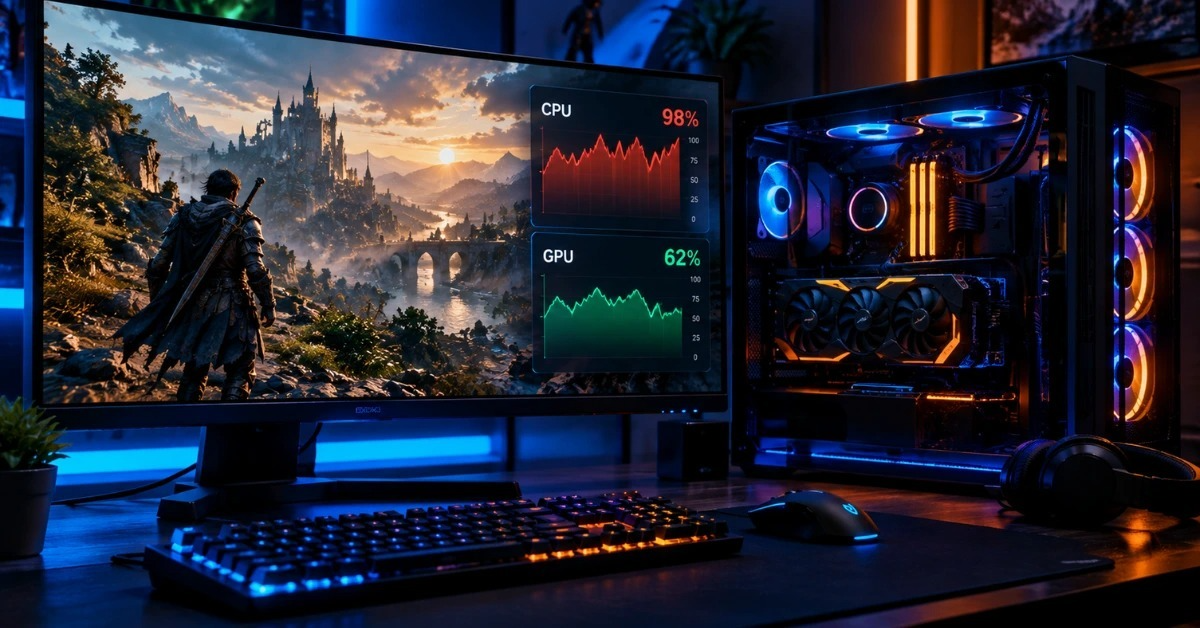
You bought a strong GPU and launched your game, but the frame rate still stutters. You open a monitor and see one CPU core stuck near 100% while your graphics card sits at 60%. Forum replies say "overclock it" or "rebuild the whole PC." Most of the time, neither is the answer.
This guide shows how to fix CPU bottleneck problems in the right order: confirm the cause, try the free fixes, and spend money only if you have to.
Quick answer: A CPU bottleneck means your processor cannot prepare frames as fast as your GPU can draw them. Confirm it by watching CPU and GPU usage together. Then fix it with free steps first: close background apps, enable XMP or EXPO, cap your frame rate, lower CPU-heavy settings, and check cooling. Upgrade hardware last.
| Fix | Cost | Time | Best when |
|---|---|---|---|
| Close background apps | Free | 5 min | CPU is busy before the game starts |
| Enable XMP or EXPO | Free | 10 min | RAM runs below its rated speed |
| Cap the frame rate | Free | 2 min | FPS is far above your monitor's refresh rate |
| Lower CPU-heavy settings | Free | 10 min | Drops happen in crowds, cities, or big fights |
| Raise resolution or GPU settings | Free | 5 min | You want better visuals at the same FPS |
| Fix cooling and power mode | Free to low | 30 min | Clock speeds fall under load |
| Update chipset and GPU drivers | Free | 15 min | Drivers are months out of date |
| Overclock | Low | 1 hour+ | You have an unlocked CPU and a compatible board |
| Same-socket CPU upgrade | Medium | 1 hour | Your motherboard supports a faster CPU |
| New CPU, board, and RAM | High | Half a day | Nothing above closes the gap |
Not sure which side is limiting? Our Bottleneck Calculator gives a rough estimate. Treat it as a starting point, then confirm with real numbers using the steps below.
How to Confirm a CPU Bottleneck
Do this before you change anything, or you may fix the wrong problem.
- Install MSI Afterburner. The installer includes RivaTuner Statistics Server, which draws the overlay.
- Open Settings, then the Monitoring tab. Tick GPU usage, CPU usage, and the per-core CPU usage entries. Turn on "Show in On-Screen Display" for each.
- Play the same busy scene for a few minutes, such as a city or a boss fight.
- Compare the numbers. If GPU usage stays below roughly 90 to 95% while one or more CPU cores sit near 100%, you likely have a CPU bottleneck. This is a rule of thumb, not a hard line.
No Afterburner? Open Task Manager, go to Performance, click CPU, right-click the graph, and choose Change graph to, then Logical processors.
Check per-core load, not only the total. On a 16-thread CPU, one maxed thread can show as a low overall percentage, and that hides the CPU bottleneck completely.
Then rule out lookalikes:
| What you see | Likely cause | What to do |
|---|---|---|
| One core near 100%, GPU under 90% in several games | CPU bottleneck | Use the fixes below |
| GPU usage low, FPS stuck at one number | V-Sync or frame cap | Check game and driver settings |
| FPS drops as the PC heats up, clocks fall | Thermal throttling | Fix cooling |
| Stutter only in the first minutes | Shader compilation | Wait; it usually settles |
| High CPU usage outside games | Background apps | Fix 1 |
Free Fixes for CPU Bottleneck
These solve most CPU bottleneck cases without spending anything. Test the same scene after each change.
1. Close background apps
- Press Ctrl + Shift + Esc to open the Task Manager.
- On the Processes tab, click the CPU column to sort by usage.
- Select apps you recognize and do not need, then click End task.
- Open Startup apps and disable nonessential programs.
Do not end Windows, driver, or security processes you do not recognize.
2. Enable XMP or EXPO and use dual channel
RAM often runs at a slow default speed until you turn on its rated profile.
- Restart and enter the BIOS (usually Del or F2).
- Find the memory profile setting. Intel boards call it XMP, AMD boards call it EXPO, and some boards use DOCP or A-XMP.
- Enable it, save, and restart.
Also check that your RAM sits in the correct slots for dual channels. Your motherboard manual shows which ones.
3. Cap your frame rate
Set the cap at your monitor's refresh rate, or slightly below what your CPU can hold steadily. Use the in-game limiter first. A cap does not remove a CPU bottleneck. It stops the CPU from chasing frames you never see, which steadies frame pacing and cuts heat.
4. Lower CPU-heavy settings
Crowd density, NPC count, traffic, physics, view distance, and shadow detail load the CPU harder than the GPU. Lower one setting at a time and replay the same scene. Keep only the changes that help. Lowering resolution alone usually does nothing here.
5. Raise resolution or GPU-heavy settings
If a CPU bottleneck caps your FPS, a higher resolution or heavier anti-aliasing moves work to the GPU. You will not gain FPS, but you get better visuals for free. Revert if performance drops too far.
Upscaling such as DLSS or FSR lowers the render resolution, so it can make a CPU limit more visible. In supported games, frame generation may raise the FPS you see, but it needs a decent base frame rate and adds some latency.
6. Fix cooling and power mode
A hot CPU slows itself down, and that can look exactly like a bottleneck. Watch core temperatures and clock speeds under load with a free tool such as HWiNFO.
If clocks fall as heat rises, clean the dust, reapply thermal paste, or fit a better cooler. On Windows 11, set Power mode to Best performance in Settings, then System, then Power & battery.
7. Update chipset and GPU drivers
Outdated drivers can add CPU overhead. Update from the AMD, Intel, or NVIDIA website, or through Windows Update.
CPU bottleneck on laptops
Laptops have tight heat and power limits, so cooling and power mode matter most. Plug in the charger, set the power mode to Best performance, and clear dust from the vents.
Hardware Fixes When Free Fixes Are Not Enough
Overclock
Overclocking needs an unlocked CPU and a compatible motherboard. It raises heat and power use, so you need good cooling and stability testing. It is rarely suitable for laptops.
Same-socket CPU upgrade
A faster CPU on your current motherboard is usually the best value. Check your motherboard's supported CPU list and BIOS version first.
Chips with extra cache, such as AMD's X3D models, are popular gaming upgrades where the socket supports them. See our Ryzen vs Intel for gaming guide to compare options.
New CPU, motherboard, and RAM
This is the last step. Only do it when your socket has no useful upgrade left. If you are planning a full build, read our best budget gaming PC picks first.
Mistakes to Avoid
- Buying a faster GPU when the CPU bottleneck is real. It usually makes the gap wider.
- Disabling hyperthreading, SMT, or E-cores to "simplify" testing. It can remove processing power your games use. Change one thing at a time.
- Lowering resolution to fix stutter. It rarely helps a CPU-limited game.
- Trusting a calculator alone. Estimates are useful, but real monitoring shows what your PC does.
When a CPU Bottleneck Does Not Matter
If your FPS already matches your monitor's refresh rate and the game feels smooth, a CPU bottleneck costs you nothing visible. Ideally your GPU is the limiting part, since it is usually the most expensive piece of the build.
Frequently Asked Questions
Can I fix a CPU bottleneck without upgrading?
Yes. Most CPU bottleneck cases improve with free steps: closing background apps, enabling XMP or EXPO, capping the frame rate, lowering CPU-heavy settings, and fixing cooling.
Is 100% CPU usage always a CPU bottleneck?
No. It only points to a bottleneck if your GPU usage is clearly lower at the same time. V-Sync, a frame cap, or throttling can also cause low GPU usage.
Is 70% CPU usage bad while gaming?
Usually not. It often means your GPU is the harder-working part. Check per-core load, because one maxed thread can hide behind a low total.
Will a new GPU fix a CPU bottleneck?
No. A faster GPU makes a CPU bottleneck more obvious, because the CPU already cannot keep up with the old one.
Does raising the resolution fix a CPU bottleneck?
It does not make the CPU faster, but it moves more work to the GPU. You get better visuals at a similar FPS.
Can RAM cause a CPU bottleneck?
Slow or single-channel RAM can hold the CPU back. Enable XMP or EXPO and check that your RAM runs in dual channel.
How do I know if my CPU is limiting my PC?
Watch CPU and GPU usage side by side in the same scene, across more than one game. A CPU core near 100% with an underused GPU confirms it.
Conclusion
A CPU bottleneck feels like a broken part, but it is usually a balance problem. Confirm it with real usage numbers first, then work through the free fixes in order. Save the overclock or new CPU for after you have ruled everything else out. When you are ready to compare parts, run your setup through the Bottleneck Calculator and check the result against real monitoring.