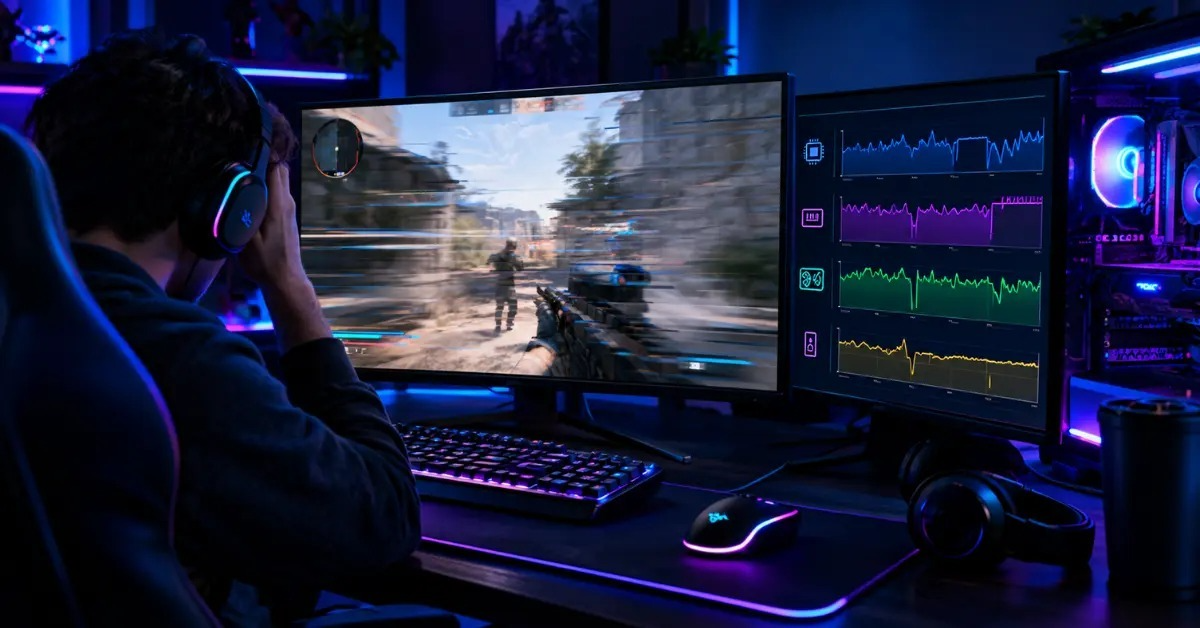
When a PC lags, games stutter, programs open slowly, and the mouse can feel late. The cause is often one part of your system that is working too hard or waiting on another part. This guide shows you how to find that part in a few minutes, and then how to fix each of the 10 most common causes.
What Kind of Lag Do You Have?
"Lag" can mean three different things. Knowing which one you have saves time.
- Low FPS: the game runs at a low frame rate and looks choppy all the time. Read our guide on FPS vs Hz for how frame rate works.
- Stutter: the game is smooth most of the time but freezes for a moment now and then.
- Network lag: the picture is smooth, but actions happen late in online games. This is usually a connection problem, not a PC problem (see cause 10).
Step 1: Find the Cause With Task Manager
- Press Ctrl + Shift + Esc to open the Task Manager.
- If you see a small window, click More details.
- Open the Performance tab.
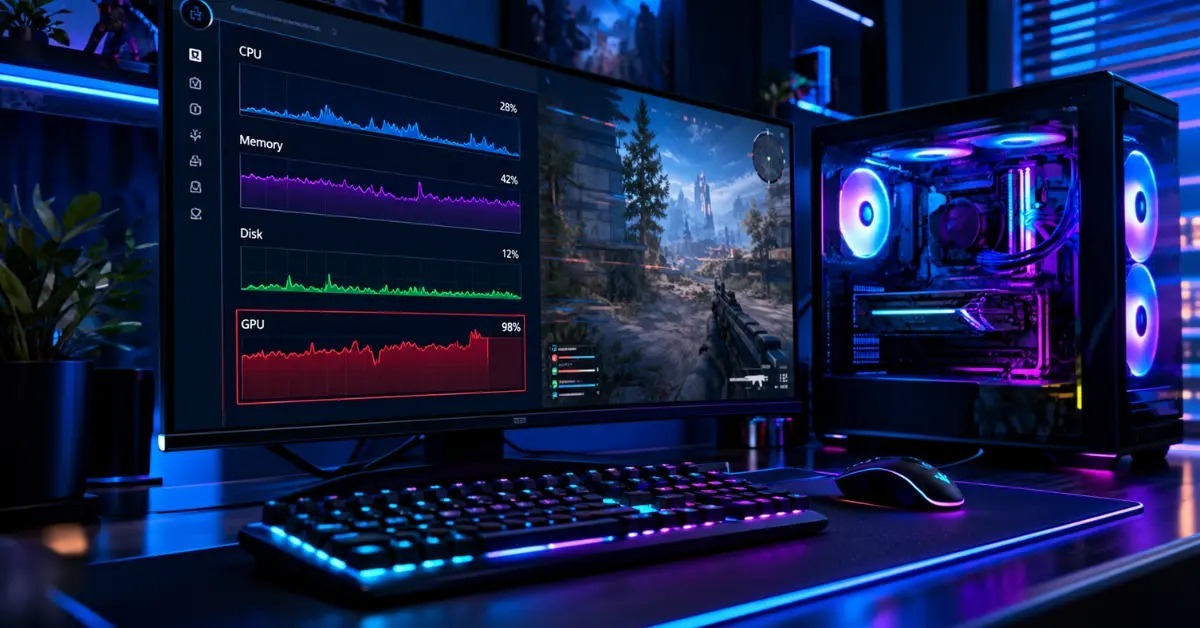
- Click CPU, Memory, Disk, and GPU one at a time while the lag is happening.
Look for one part that stays close to its maximum while the others stay low. That part is the likely cause.
| What You See | Likely Cause | Go To |
|---|---|---|
| CPU stays very high | Background apps, malware, or a CPU bottleneck | Causes 1, 7, 8 |
| Memory stays almost full | Not enough RAM or too many apps | Causes 1, 6 |
| Disk stays at the top | Full or slow storage | Cause 5 |
| GPU low, CPU high in games | CPU bottleneck | Cause 7 |
| Everything looks normal, but online games lag | Network problem | Cause 10 |
| Lag gets worse after some time | Heat | Cause 4 |
10 Causes and Fixes
1. Too Many Background Apps
Browsers with many tabs, chat apps, launchers, and cloud sync tools all use CPU and memory. In Task Manager, open the Processes tab and sort by CPU or Memory. Close what you do not need before you play.
2. Too Many Startup Programs
Apps that start with Windows use resources right after you turn on the PC. Open Task Manager, go to the Startup apps tab, and disable programs you do not need at startup. Do not disable anything you do not recognize without checking what it is first.
3. Outdated Drivers or Windows
Old graphics drivers and missing Windows updates can cause stutter, crashes, and low performance in new games.
- Update Windows through Settings > Windows Update.
- Download your graphics driver from the NVIDIA, AMD, or Intel website.
- Update chipset drivers from your motherboard or laptop maker.
Update a BIOS only if you have a specific reason and follow your maker's instructions carefully.
4. Overheating
When a CPU or GPU gets too hot, it slows itself down to protect itself. This is called thermal throttling. The typical sign is a PC that runs well at first and then lags after a while, often with loud fans.
- Clean dust from fans and vents. Turn the PC off and unplug it first.
- Make sure the case has clear airflow and nothing blocks the vents.
- On a laptop, use it on a hard flat surface.
- Watch temperatures with a monitoring tool. Safe limits differ by chip, so check your CPU or GPU maker's specifications.
5. Full or Slow Storage
If Task Manager shows the disk at the top during lag, storage is the problem. A hard disk drive (HDD) is much slower than a solid state drive (SSD), especially for loading Windows, apps, and game levels.
- Free up space. As a rule of thumb, avoid running a drive almost full.
- Use Settings > System > Storage to clean temporary files.
- If Windows is installed on an HDD, moving it to an SSD is often the biggest improvement you can make for general speed.
An SSD makes loading and opening things faster. It does not usually raise FPS in games.
6. Not Enough RAM
If memory stays close to full in Task Manager, Windows starts using your drive as extra memory, which is much slower. First close apps you do not need. If memory is still almost full during normal use, adding more RAM helps. Check your motherboard for free slots and match the type your PC uses.
7. CPU Bottleneck
A CPU bottleneck happens when your processor cannot prepare frames as fast as your graphics card can draw them. The GPU waits, and FPS stays lower than expected.
Signs:
- GPU usage stays well below full while the CPU is very high.
- FPS drops in crowded scenes, large cities, or big multiplayer matches.
- Lowering the resolution does not raise FPS.
GPU usage can also be low because of an FPS cap or VSync, so check those settings first.
Fixes:
- Lower CPU-heavy settings such as draw distance, crowd density, and physics.
- Raise the resolution or turn on upscaling such as DLSS or FSR to move more work to the GPU.
- Close background apps.
- If you are still limited, consider a faster CPU.
To check whether your CPU or GPU is holding your PC back, try our Bottleneck Calculator. For CPU choices, see Ryzen vs Intel for Gaming.
8. Malware
Malicious software can use your CPU or network in the background. Run a full scan with Windows Security (Virus & threat protection > Scan options > Full scan). If the PC is still slow, run a scan with a second trusted scanner.
9. Power Settings
A power plan set to save energy can hold back performance. On Windows 11, open Settings > System > Power & battery and set the power mode to Best performance. On a laptop, plug in the charger while gaming. Also make sure Game Mode is turned on in Windows settings.
10. Network Lag
If your PC feels smooth but online games react late, the connection is the issue. Check the ping shown in the game.
- Use a wired Ethernet cable instead of Wi-Fi if you can.
- Pause downloads and streaming on other devices.
- Pick the game server closest to you.
- Restart your router.
When to Upgrade
Try the free fixes first. Think about an upgrade when:
- Task Manager shows the same part at its limit even after a clean restart and closing apps.
- Games lag even on low settings.
- Your PC still uses an HDD for Windows.
- Your CPU is much older than your graphics card.
Upgrade the part that Task Manager and the steps above point to, rather than guessing. To see what your PC can handle, use Can My PC Run It?, and for a new build see Best Gaming PC for Budget. To estimate FPS before you buy, use the FPS Calculator.
Tools to Monitor Your PC
- Task Manager: built into Windows. Shows CPU, memory, disk, and GPU.
- Resource Monitor: built into Windows. Gives a more detailed view.
- MSI Afterburner: shows GPU usage and FPS while you play.
- HWMonitor: shows temperatures and fan speeds.
- CrystalDiskInfo: shows the health of your drives.
Frequently Asked Questions
Why is my PC lagging all of a sudden?
Think about what changed: a new update, a new app, a new game, or more dust and heat. Check Task Manager, then run a malware scan and check temperatures.
Why does my PC lag only in games?
Games use the CPU, GPU, and drive much harder than normal apps. Check graphics drivers, game settings, temperatures, and whether your CPU is a bottleneck.
Why is my PC lagging but my internet is fine?
Then the cause is probably local. Check CPU, memory, disk, and temperature in the Task Manager.
How do I tell if the lag is a software or hardware problem?
Software problems usually come from a specific app or a setting and improve after you close it or update. Hardware limits show one part at its maximum even with few apps open.
Why does restarting the PC fix lag for a while?
A restart closes all apps and clears memory. If the lag comes back after a few hours, look for a background app that keeps using more memory, or for heat.
Will a new graphics card fix my lag?
Only if the GPU is the weak part. If the CPU is the bottleneck, a new GPU will not help much.
Is lag the same as low FPS?
No. Low FPS is one kind of lag. Stutter and network delay are others, and they have different fixes.
Should I upgrade my PC or buy a new one?
If several parts are old, a new PC can make more sense than replacing them one by one. If only one part is the problem, such as an HDD or too little RAM, upgrading that part is usually cheaper. Compare real prices before you decide.